wifi keeps disconnecting on windows 11 after update
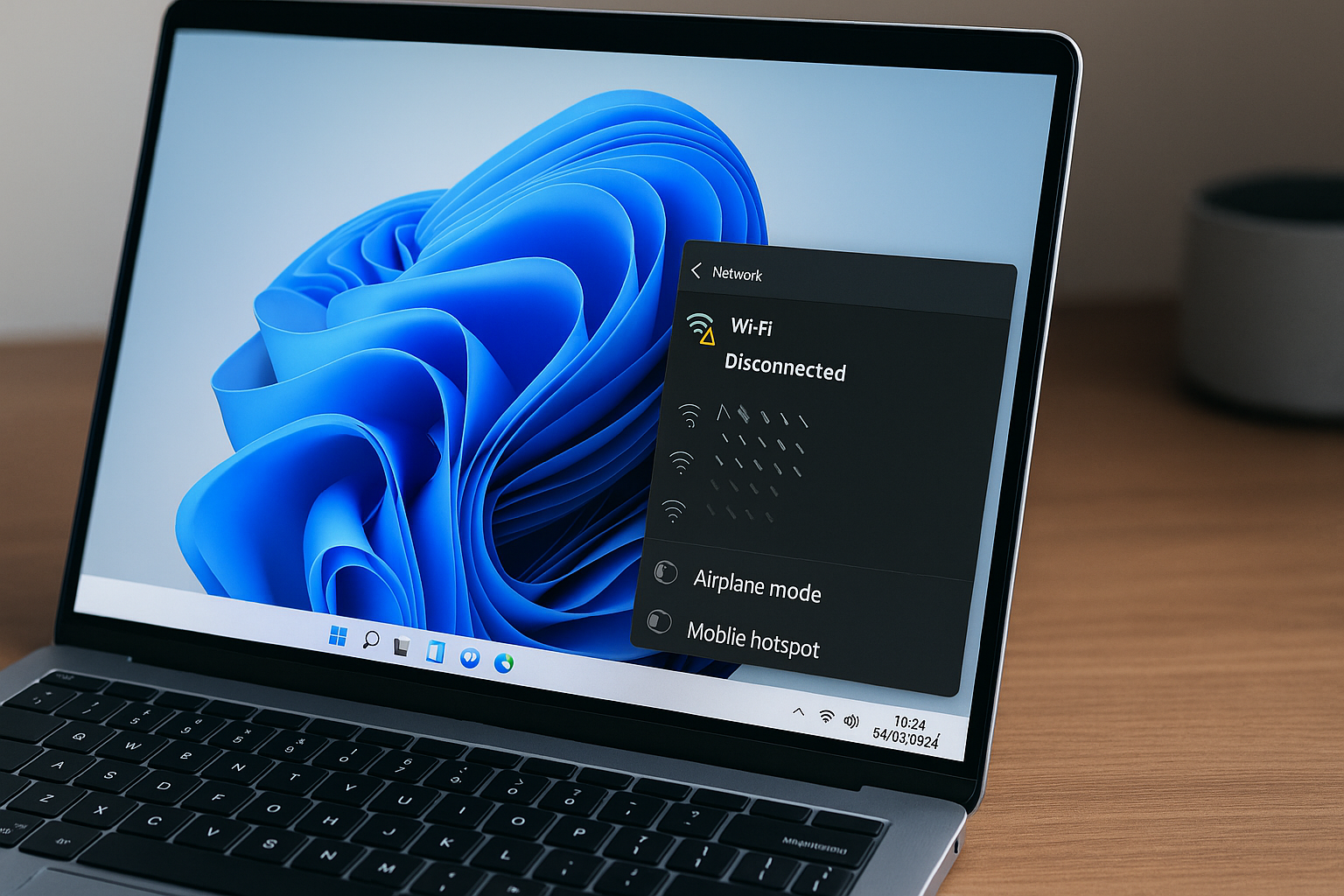
Is Windows 11 Ghosting Your Wi-Fi After That Update? Let’s Tweak One Setting and Stop the Dropouts!
Ever been mid-Zoom call when your Wi-Fi vanishes? You updated to Windows 11, and suddenly your connection keeps ghosting you. It’s not your router—it’s a sneaky power management setting.
Video Hook: Ghost Wi-Fi? Disable power savings. 🚫📶
Why This Happens: Power Management Puts Your Adapter to Sleep
Windows 11 loves saving battery. So much that it can turn off your Wi-Fi adapter without asking. You’ll see random dropouts—even on desktop PCs with no battery. It’s that over-zealous “Allow the computer to turn off this device” option.
Fix It in 2 Minutes: Turn Off Wi-Fi Power Saving
- Press Win + X and choose Device Manager.
- Expand Network adapters and right-click your Wi-Fi adapter (e.g., Intel Wireless-AC 9560).
- Select Properties > Power Management tab.
- Uncheck Allow the computer to turn off this device to save power.
- Click OK and restart your PC.
Bonus: Max Out Wi-Fi in Your Power Plan
- Search “Edit power plan” in the Start menu, click it.
- Click Change advanced power settings.
- Scroll to Wireless Adapter Settings > Power Saving Mode.
- Set both On battery and Plugged in to Maximum Performance.
- Apply and OK.
Quick Hit: One checkmark was killing my stream—uncheck it!
Extra Cleanup: Reset Network Stack
If you’re still seeing dropouts, run these commands in an Admin PowerShell or CMD:
netsh int ip reset
netsh winsock reset
ipconfig /flushdns
Then restart. This clears any lingering network glitches.
Common Mistakes to Avoid
- Forgetting to reboot after changes.
- Changing the wrong adapter—double-check you’re tweaking the Wi-Fi one.
- Skipping the power plan tweak; both settings work hand in hand.
FAQ
-
Q: My PC isn’t on battery—why is power management affecting me?
A: Windows applies the same settings to desktops and laptops. That setting lives per-adapter, not per-device.
-
Q: Will disabling this hurt my battery life?
A: Modern Wi-Fi chips are efficient. You’ll see almost no extra drain, but you’ll avoid random drops.
-
Q: Update re-checked these settings—do I need to redo it?
A: Rarely. Major Windows upgrades might reset them. Just revisit Device Manager if dropouts return.
Conclusion
Power management in Windows 11 aims to help, but it can misfire and kill your Wi-Fi. A quick trip to Device Manager and your power plan settings will stop the ghosting. No more mid-call freeze or random lags—just rock-solid wireless. Ready to surf without surprises?

Comments
Post a Comment