troubleshoot external hard drive not recognized in windows 11
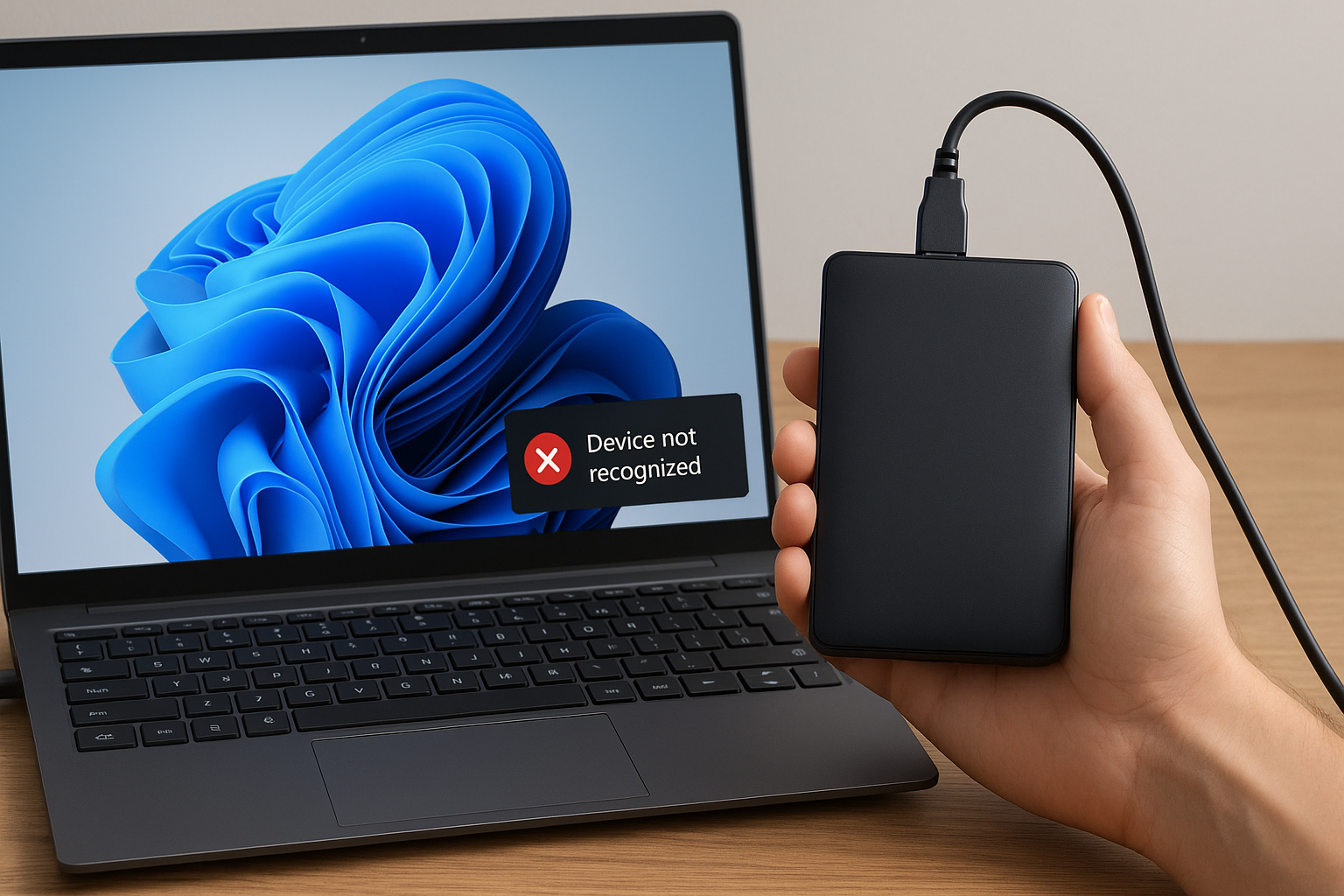
External Hard Drive Not Recognized in Windows 11? Fix Hidden Power Setting
My external HDD vanished on Windows 11—here’s the one power setting to bring it back to life.
Video hook: USB drives napping? Wake ’em up with one click!
Video hook: Say goodbye to vanished HDDs—power setting fix inside.
Why Windows 11 Hides Your USB Drives
Windows conserves energy by putting USB ports into sleep mode. Sometimes it never wakes them up, so your drive disappears from File Explorer and Disk Management.
Step-by-Step Fix: Disable USB Selective Suspend
- Press Win + R, type
control powercfg.cpl, and press Enter. - Click Change plan settings next to your active power plan.
- Click Change advanced power settings.
- Expand USB settings > USB selective suspend setting.
- Set both On battery and Plugged in to Disabled.
- Click Apply, click OK, then reconnect your external drive.
Advanced: Use Powercfg Command
powercfg -setacvalueindex SCHEME_CURRENT SUB_USB USBSELECTIVE_SUSPEND 0
powercfg -setdcvalueindex SCHEME_CURRENT SUB_USB USBSELECTIVE_SUSPEND 0
powercfg -SETACTIVE SCHEME_CURRENT
Common Mistakes to Avoid
- Skipping the Apply and OK buttons after changes
- Ignoring USB Root Hub power settings in Device Manager
- Forgetting to restart Windows after updating power options
FAQ
- Q: My drive still does not show up. What do I do next?
A: Open Device Manager, expand Disk drives or Universal Serial Bus controllers, right-click each USB Root Hub, choose Properties, go to Power Management, and uncheck Allow the computer to turn off this device to save power.
- Q: How can I run a disk check?
A: Open Command Prompt as administrator and run
chkdsk E: /f(replace E: with your drive letter). - Q: Any other quick tips?
A: Always use a powered USB hub if your external drive draws a lot of current. Cheap cables or unpowered ports can also make drives vanish.
Conclusion
No more disappearing drives. By disabling the USB selective suspend setting, Windows 11 will keep your external HDD awake and ready. Give your drive the power it deserves and never lose access again.

Comments
Post a Comment