how to troubleshoot printer not connecting to WiFi network
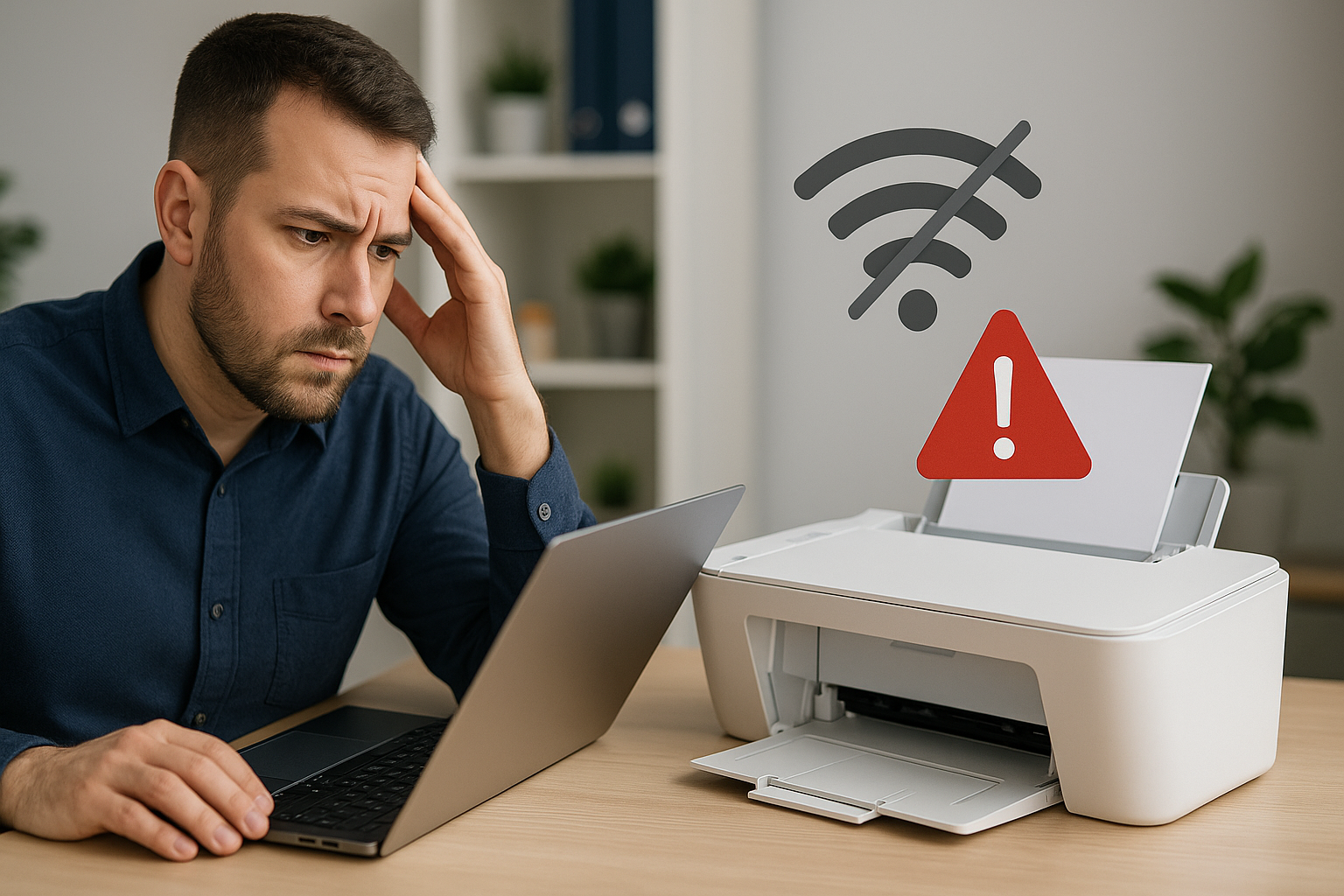
How to Troubleshoot a Printer Not Connecting to Your Wi-Fi Network
Having trouble getting your printer online? This beginner-friendly guide will help you diagnose and fix common Wi-Fi connectivity issues in a few simple steps. Follow along for practical commands, real examples, and clear solutions.
Common Causes of Printer Wi-Fi Connectivity Issues
- Incorrect Wi-Fi password or network name (SSID)
- Printer and router on different frequency bands (2.4 GHz vs. 5 GHz)
- Weak Wi-Fi signal or physical obstructions
- Outdated printer firmware or router software
- IP address conflicts or DHCP failures
Pre-Checks Before You Begin
- Ensure the printer is powered on and displays a “Ready” or “Idle” status.
- Verify you know the exact SSID and Wi-Fi password.
- Confirm your router’s 2.4 GHz band is enabled (most printers only support 2.4 GHz).
- Restart your router, printer, and computer.
Step-by-Step Troubleshooting Guide
-
Reconnect to the Wi-Fi Network
- On the printer’s control panel, go to Settings > Network > Wi-Fi Setup.
- Select your SSID and enter the password carefully (watch for uppercase letters and symbols).
-
Verify Printer IP Address
Printing a network configuration page helps you find the printer’s IP.
- Most printers under Settings > Reports offer a “Network Configuration” report.
- Note the IPv4 address (e.g.,
192.168.1.45).
-
Ping the Printer from Your PC
This verifies network reachability.
ping 192.168.1.45A successful reply looks like:
Reply from 192.168.1.45: bytes=32 time=15ms TTL=64 -
Check DHCP Lease and IP Conflicts
- Login to your router’s web interface (commonly
http://192.168.1.1). - Under LAN > DHCP Clients, ensure the printer’s IP is listed and unique.
- Login to your router’s web interface (commonly
-
Adjust Wi-Fi Channel and Signal
- Use a mobile app like “WiFi Analyzer” to find the least-crowded 2.4 GHz channel.
- Move the printer closer to the router or remove obstacles (walls, metal objects).
-
Update Printer Firmware
Manufacturers often release fixes for connectivity bugs.
- Visit the printer brand’s support site, download the latest firmware.
- Apply via USB or the built-in web server at
http://.
Advanced Troubleshooting
-
Reset Printer Network Settings
Clears old configurations so you can start fresh.
- On the printer: Settings > Network > Restore Network Defaults.
-
Use WPS Push-Button Setup
If your router supports WPS:
- Press the WPS button on the router.
- Within two minutes, select WPS Setup on the printer.
-
Assign a Static IP
Prevents IP conflicts in busy networks.
Settings > Network > TCP/IP > ManualUse an IP outside your DHCP range, e.g.,
192.168.1.200.
Conclusion
By following these steps—reconnecting to Wi-Fi, verifying IP settings, updating firmware, and exploring advanced options—you can resolve most printer-to-network connectivity problems. If issues persist, contact your printer manufacturer’s support for model-specific assistance.
Frequently Asked Questions
Why does my printer only see 2.4 GHz networks?
Most home printers support only the 2.4 GHz band due to its longer range and compatibility. Ensure your router’s 2.4 GHz radio is enabled and broadcasting the SSID.
How do I find my printer’s IP if it won’t print a configuration page?
Check your router’s DHCP client list or use a network scanning tool (e.g., Angry IP Scanner) to locate new devices on your network.
What if the Wi-Fi password has special characters?
Enter it exactly as shown, including uppercase/lowercase letters and symbols. If problems continue, temporarily change the password to a simpler one to test connectivity.
Can firewall settings block my printer?
Yes. Ensure any software firewall on your computer or router isn’t blocking the printer’s IP or required ports (e.g., TCP 9100 for HP JetDirect).
When should I reset my router?
Only after basic checks fail. A router reset will clear all settings—SSID, password, port forwards—so back up your configuration first.

Comments
Post a Comment