how to stop WiFi disconnecting on Windows 11 laptop
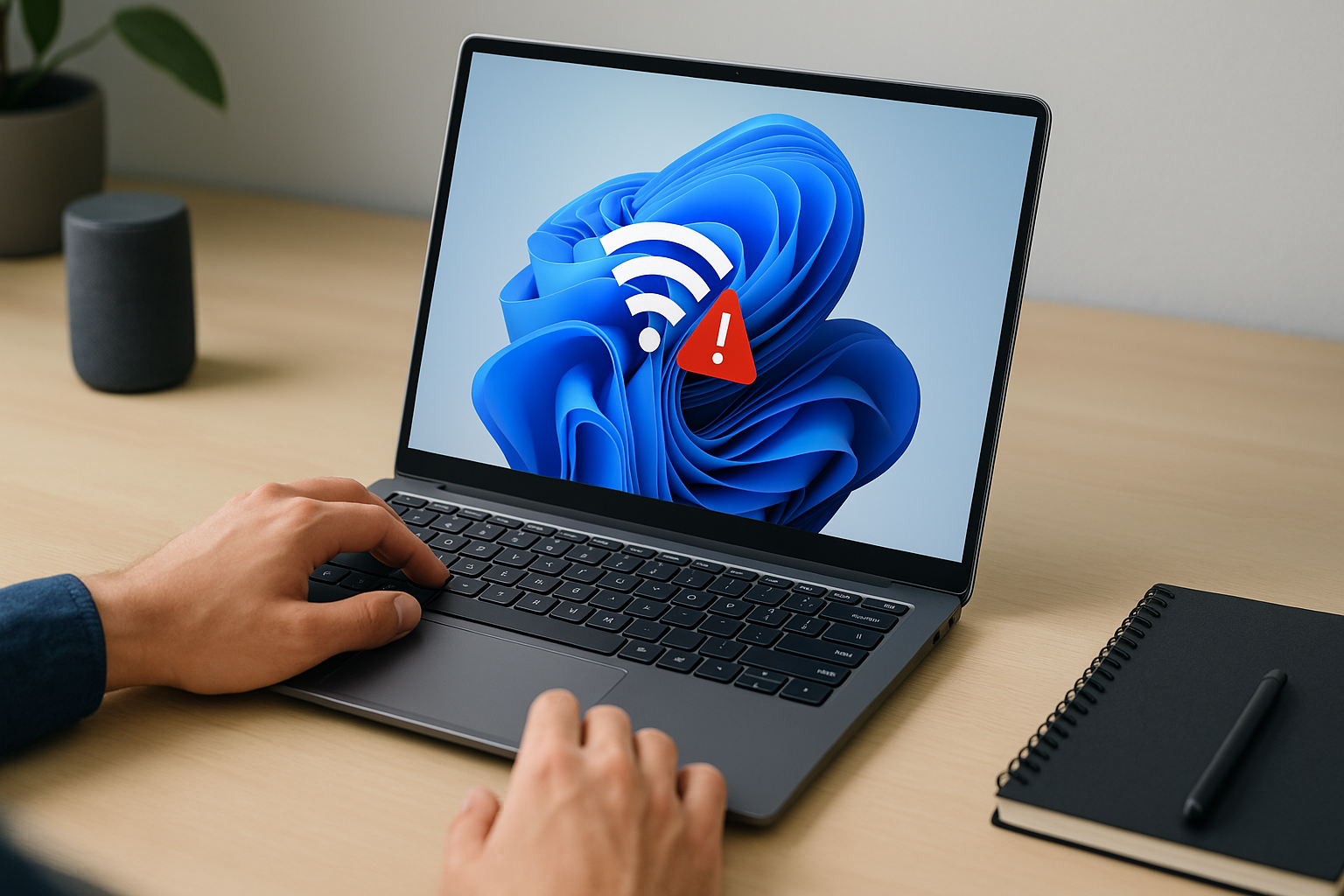
How to Stop WiFi Disconnecting on Windows 11 Laptop by Disabling Power Management
Tired of your Windows 11 Wi-Fi dropping? Flip this one power toggle and you’re good to go!
Why Your Wi-Fi Keeps Dying
It felt like my router had a vendetta—one second I’m streaming, the next I’m offline. Turns out Windows 11 was sending my Wi-Fi adapter to sleep to save juice.
- Windows auto-saves battery by letting devices snooze.
- Your Wi-Fi adapter is the first to nap.
- Low battery + strict power plan = random disconnects.
Punchy insight: Windows sleeps your Wi-Fi. Seriously.
Flip the Power Management Toggle
- Press Windows + X and select Device Manager.
- Expand Network adapters, double-click your Wi-Fi adapter.
- Go to the Power Management tab.
- Uncheck Allow the computer to turn off this device to save power.
- Click OK and reboot.
Short and impactful: Uncheck it. Reboot. Done.
Open Power Options with One Command
control powercfg.cplType that into Run (Win + R) and hit Enter to jump straight into power plans.
Bonus: Tune Wireless Adapter Settings in Your Power Plan
- In Power Options, click Change plan settings next to your active plan.
- Click Change advanced power settings.
- Expand Wireless Adapter Settings → Power Saving Mode.
- Set both On battery and Plugged in to Maximum Performance.
- Click Apply → OK.
Common mistake: Only tweaking the battery mode. Do both!
Video Hooks
- Windows is snoozing your Wi-Fi—flip that toggle!
- One click fixes endless disconnects on Windows 11.
FAQ
- Will this kill my battery?
You might lose a few percent faster, but modern batteries barely notice.
- Still dropping?
Update drivers: in Device Manager, right-click your adapter → Update driver. Or run
netsh winsock resetin an admin Command Prompt. - Using a USB Wi-Fi dongle?
Disable USB selective suspend: Power Options → USB settings → USB selective suspend → Disabled.
Conclusion
Next time your Wi-Fi ghosts you mid-download, remember: it’s not the router, it’s your laptop’s power plan. Uncheck that toggle, tweak your plan, and wave goodbye to random drops.
Flip one setting. Stay online. Boom!

Comments
Post a Comment