how to resolve DNS server not responding on Windows 11
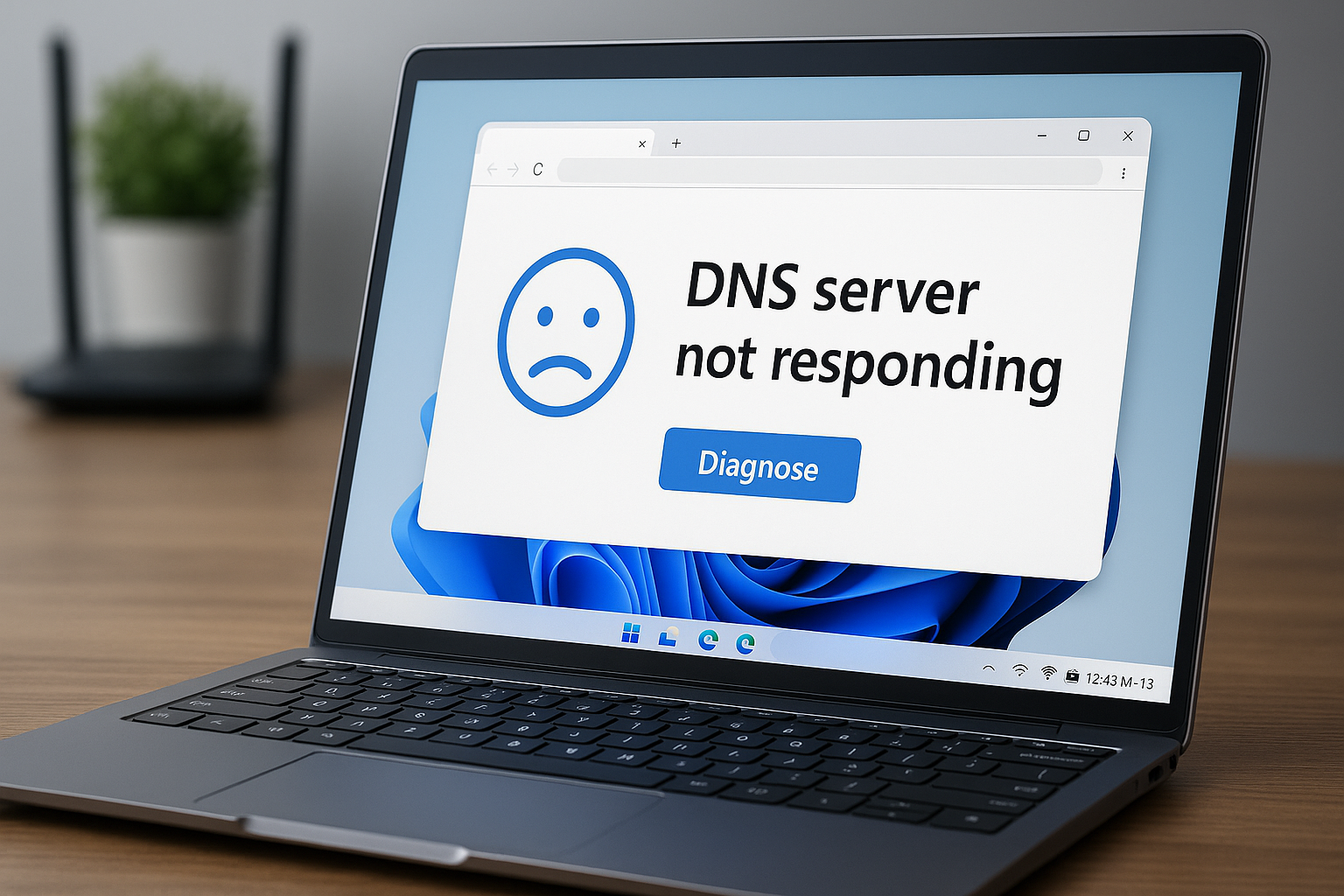
How to Fix 'DNS Server Not Responding' on Windows 11 – 30-Second Google DNS Swap
Keep seeing ‘DNS server not responding’ on Windows 11? Swap to Google DNS in 30 seconds!
Why DNS Settings Matter
Ever try to open a website and watch your browser spin forever? Your PC asks a DNS server to translate “example.com” into an IP address. If that server is misconfigured or offline, you get the dreaded DNS error. Most of the time, a wrong DNS entry in your network adapter is to blame.
Common Mistake: Misconfigured DNS in the Network Adapter
After a Windows update, VPN install or router reset, your DNS fields can reset to an unreachable server. You might even be using an ISP DNS that’s down, without realizing it.
Quick Fix: Swap to Google DNS via GUI
- Press Windows+R, type
ncpa.cpl, press Enter. - Right-click your Wi-Fi or Ethernet adapter, select Properties.
- Click Internet Protocol Version 4 (TCP/IPv4), then Properties.
- Select Use the following DNS server addresses.
- Enter Preferred DNS:
8.8.8.8and Alternate DNS:8.8.4.4. - Click OK twice and close the window.
Video Hook: Stop waiting—swap your DNS in 30 seconds!
Command-Line Alternative
netsh interface ip set dns name="Wi-Fi" static 8.8.8.8
netsh interface ip add dns name="Wi-Fi" addr=8.8.4.4 index=2
Replace "Wi-Fi" with your adapter’s name. Instant fix—no GUI needed!
Verify Your New DNS
- Open Command Prompt, run
ipconfig /flushdnsto clear the old cache. - Test connectivity:
ping example.com. - Confirm DNS resolution:
nslookup example.com.
Quick Tip: Flushing the DNS cache forces Windows to use your new settings immediately.
FAQ
- Why do I see “DNS server not responding”? Most often it’s wrong DNS addresses, network adapter glitches, or your ISP’s DNS is down.
- Can I use other DNS servers? Absolutely. Try Cloudflare DNS (1.1.1.1, 1.0.0.1) or OpenDNS (208.67.222.222, 208.67.220.220).
- Do I need to reboot after changing DNS? Not really. Running
ipconfig /flushdnsusually does the trick, but a reboot can’t hurt. - What if the error persists? Update your network adapter driver, reset your router, or check for software firewalls blocking DNS.
Conclusion
Misconfigured DNS settings are a sneaky but common cause of the “DNS server not responding” error on Windows 11. Swapping to Google DNS (8.8.8.8 & 8.8.4.4) fixes most issues in just 30 seconds. Back to smooth, frustration-free browsing!

Comments
Post a Comment