how to fix android stuck on boot screen without data loss
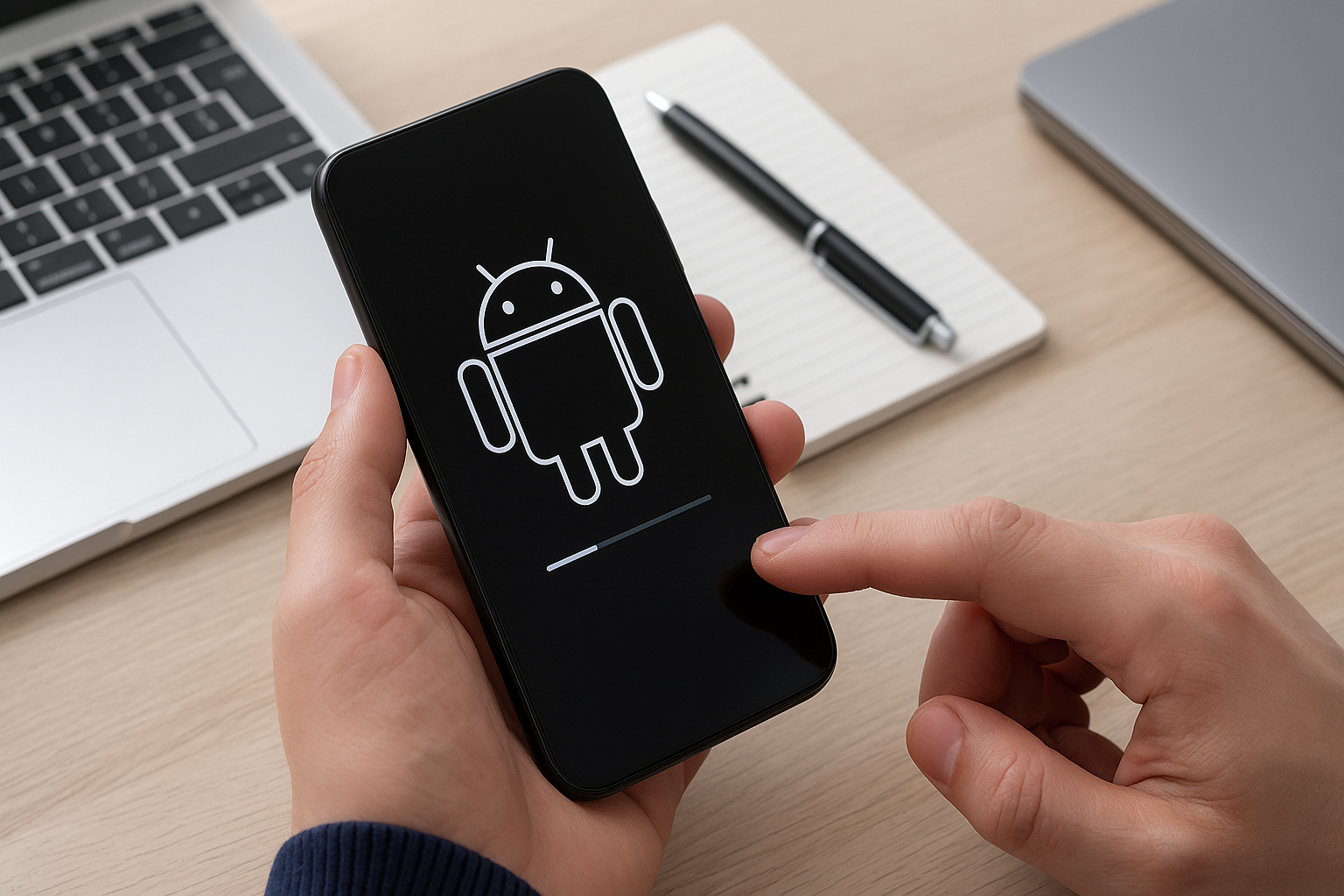
How to Fix Android Stuck on Boot Screen Without Data Loss
If your Android device is stuck on the boot screen (bootloop) and you’re worried about losing precious data, this step-by-step guide will help you recover your device safely. We’ll cover beginner-friendly methods, practical commands, and clear examples to get your phone back to normal without wiping your personal files.
Why Android Gets Stuck on Boot Screen
A bootloop or stuck-on-boot-screen issue can occur due to:
- Corrupted system cache
- Faulty app or update installation
- Software bugs after a firmware upgrade
- Incomplete root or custom ROM flashing
Prerequisites
- A computer with Windows, macOS, or Linux
- Original USB cable
- ADB and Fastboot tools installed
- Download from Android Platform Tools
- At least 50% battery charge on your device
Step-by-Step Recovery Guide
-
Force Restart
Press and hold the Power button for 10–15 seconds until the device powers off. Release and power it on again. If it still hangs, proceed to the next step.
-
Boot into Recovery Mode
Use the correct key combination for your device:
- Samsung: Volume Up + Power
- Google Pixel: Volume Down + Power
- OnePlus: Volume Down + Power
Keep holding until you see the Android Recovery screen.
-
Wipe Cache Partition
This clears temporary system files without deleting personal data.
- Use the volume keys to highlight Wipe cache partition.
- Press the power button to confirm.
- Once done, select Reboot system now.
-
Boot into Safe Mode
Safe Mode disables third-party apps that might cause conflicts.
- When the device logo appears, press and hold Volume Down until you see “Safe mode” at the bottom.
- Uninstall recent apps causing the issue.
- Reboot normally.
-
Use ADB to Backup Data
If the above steps don’t work, backup your data via ADB:
adb devices
adb pull /sdcard/DCIM ~/AndroidBackup/DCIM
adb pull /sdcard/Download ~/AndroidBackup/Download
Replace paths as needed. This saves photos, downloads, and other files to your computer.
-
Sideload Official OTA Update
Flashing an official update can restore system files without affecting user data:
- Download the correct OTA ZIP for your device model.
- Boot into Recovery Mode.
- Select Apply update from ADB.
- On your PC, run:
adb sideload update.zip - Wait for the process to finish, then select Reboot system now.
FAQ
-
Q: Will wiping the cache partition delete my photos and apps?
A: No. Wiping the cache only removes temporary system files.
-
Q: Can I fix the bootloop without a computer?
A: You can try force restart, recovery wipe cache, and safe mode without a PC. For ADB and sideload, a computer is required.
-
Q: What if sideloading the OTA fails?
A: Ensure you have the correct ZIP for your model. Re-download, verify file integrity, and retry.
-
Q: Is there a way to recover without recovery mode?
A: If your device powers on enough, try ADB backup. Otherwise, recovery mode is essential.
Conclusion
Dealing with an Android stuck on the boot screen can be stressful, but by following these methods step by step, you can resolve the issue without losing your data. Start with simple restarts and cache wipes, then move on to ADB backups and OTA sideloads if needed. Always ensure you use the correct files and commands for your specific device model. With patience and careful execution, your Android device will boot up normally again.
Comments
Post a Comment