Fix slow USB transfer speed on Windows 11 laptops
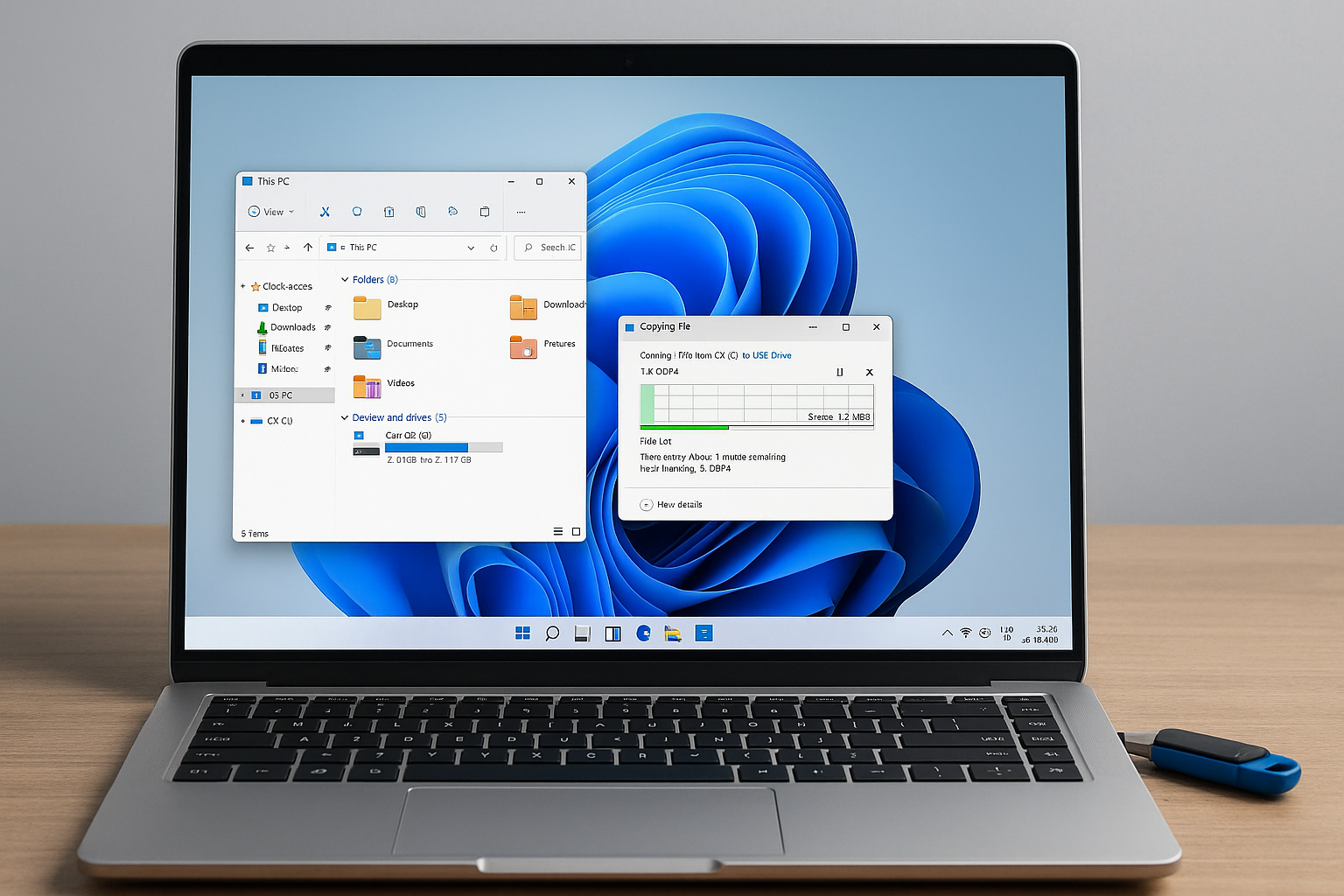
Fix Slow USB Transfer Speeds on Your Windows 11 Laptop
Why’s your USB transfer crawling at 5 MB/s? Spoiler: It’s not the cable—let me show you the port you should be using.
- Video Hook: Stop blaming your cable—it's the port!
- Video Hook: Blue ports don't lie: click, transfer, done.
Spotting the Hidden Mistake
Just last week I plugged my fast NVMe drive into a tiny black port under my keyboard. Five gigabytes took forever. I kicked myself when I realized it was only USB 2.0. Happens to the best of us.
Step 1: Identify Your USB Port
- Look at the port color. Blue or teal usually means USB 3.x; black means USB 2.0.
- Open Device Manager:
Win + X → Device Manager → Universal Serial Bus controllers - Right-click each “USB Root Hub” → Properties → Advanced → check “Speed.”
Step 2: Adjust Power Settings
Windows may throttle your USB ports to save battery.
- Open Command Prompt as admin.
- Run:
powercfg /setdcvalueindex SCHEME_CURRENT SUB_USB USBSS 0 powercfg /setacvalueindex SCHEME_CURRENT SUB_USB USBSS 0 powercfg /S SCHEME_CURRENT - Plug in your drive again and test.
Step 3: Update & Verify Your Drivers
Old drivers can default a USB 3.0 port to USB 2.0 mode.
- Open PowerShell as admin.
- List USB devices:
Get-PnpDevice -Class USB | Format-Table -AutoSize - Right-click any device marked “USB 2.0” in Device Manager → Update driver.
Step 4: Test Different Ports & Devices
- Try the same drive in each port—measure copy speed.
- Swap cables if you suspect a fault, but you’ll often see no change.
- Use CrystalDiskMark or a similar tool for real benchmarks.
Common Pitfalls
- Plugging into front-panel ports wired as USB 2.0.
- Laptop docking stations that only expose USB 2.0.
- Leaving “USB selective suspend” enabled on battery.
FAQ
- Why is my USB 3.0 drive slow? Usually because it’s plugged into a USB 2.0 port or in power-saving mode.
- How can I tell port speeds without software? Blue/teal ports signal USB 3.x. Black is almost always USB 2.0.
- Will a new cable help? Only if your cable is damaged or not rated for USB 3.x. Most worry about the cable—but often it’s the port.
Conclusion
Next time transfers drag at 5 MB/s, don’t swap cables—check your port and power plan. A quick glance at color or a simple powercfg tweak will jump you from USB 2.0 to true USB 3.x speeds. Plug in, transfer fast, repeat.


Comments
Post a Comment