boost slow internet speed on Chromebook easily
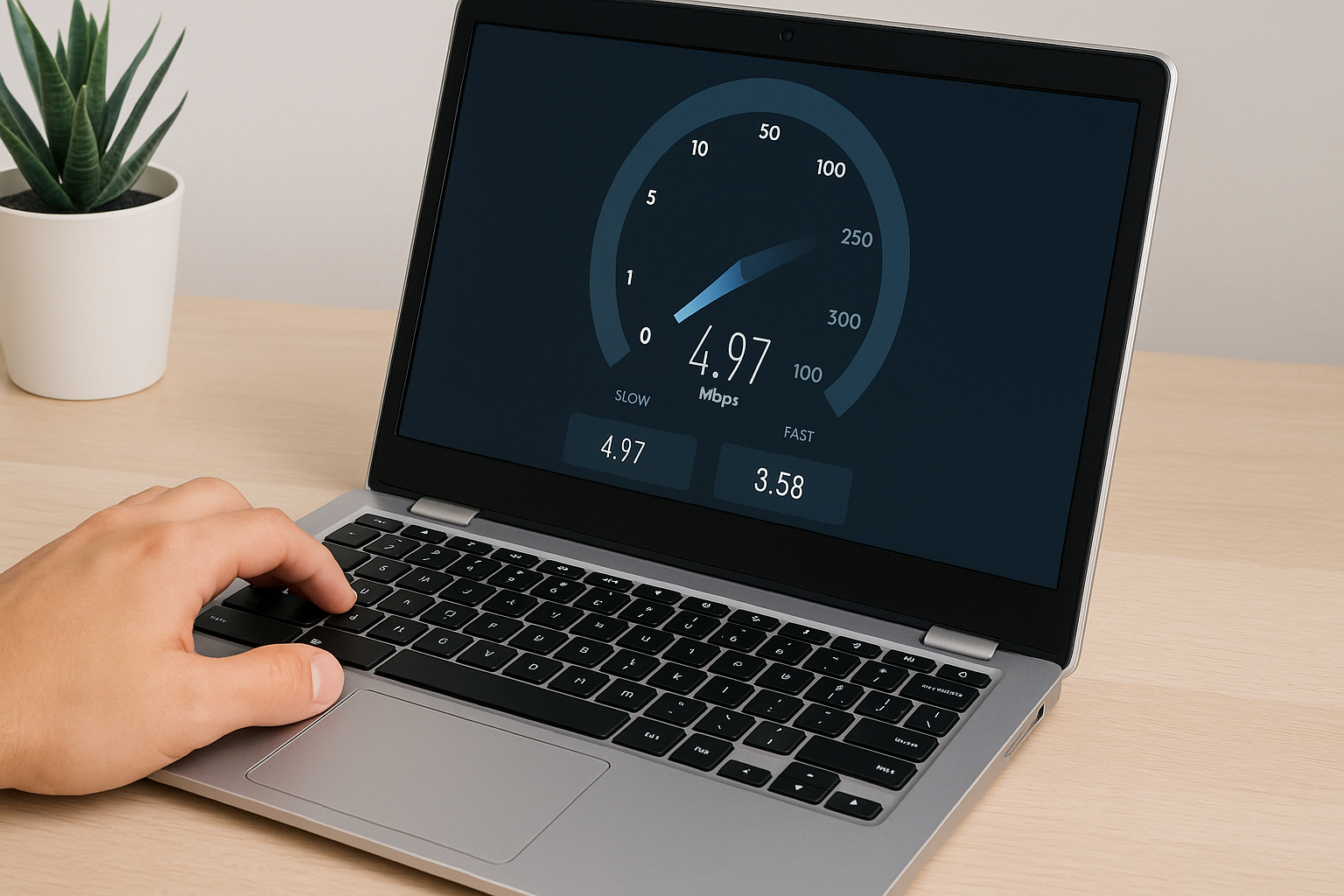
Boost Your Chromebook's Internet Speed with a 1-Minute DNS Hack
Internet crawling on your Chromebook? Try this one-minute DNS hack!
Real-World Frustration
“Why does a simple Google search take forever?” I asked myself as my Chromebook spun that loading icon for 10 seconds straight. Sound familiar?
Why DNS Tweaks Matter
Your Chromebook asks a DNS server to translate “google.com” into an IP address. If that server is slow or overloaded, every page load drags.
Surprising Causes
- Default ISP DNS servers often have high query times
- Cached records can get stale, slowing resolution
- Chrome OS defaults may not enable DNS prefetching
Quick DNS Switch on Chromebook
- Click the clock in the bottom-right corner.
- Select the Wi-Fi network you’re on, then “Settings.”
- Under “Name servers,” choose “Custom name servers.”
- Enter your favorites:
Primary DNS: 1.1.1.1 Secondary DNS: 1.0.0.1 - Save and reconnect.
Switch to Cloudflare DNS (1.1.1.1) or Google DNS (8.8.8.8) for rock-solid resolution times.
Punchy insight: Switch to 1.1.1.1 and feel the difference instantly.
Flush DNS Cache
After changing servers, clear any old entries:
1. Open Chrome and go to:
   chrome://net-internals/#dns
2. Click “Clear host cache.”
Short hook: Flush your DNS—it’s like giving your browser a fresh start.
Other Chrome OS Speed Tweaks
- Enable DNS prefetching:
Set to “Enabled” and relaunch.chrome://flags/#dns-prefetching - Disable unused extensions: Cuts CPU and network overhead.
- Update Chrome OS: Always run the latest build for network optimizations.
FAQ
Does changing DNS really speed up browsing?
Yes. Faster DNS often shaves 50–200 ms off each lookup. Multiplied over dozens of requests, pages load noticeably quicker.
Will this affect my privacy?
Public DNS providers like Cloudflare and Google commit to not selling your data. You can even enable DNS-over-HTTPS in Chrome OS settings for extra privacy.
What if my Wi-Fi is the real bottleneck?
Check signal strength, move closer to your router, or switch to 5 GHz band. DNS tweaks help once network quality is stable.
Conclusion
One-minute DNS tweaks and a quick cache flush can turn your sluggish Chromebook into a speed demon. Next time your pages crawl, remember this DNS hack—and get back to work without the wait.


Comments
Post a Comment